VR & Backing Tracks
Midi (and SMF – an ‘enhanced’ midi format) song files are ‘binary files’ that contain midi-sequences of ‘notes/chords’ and ‘modifiers’ (e.g. volume, pan, chorus, reverb, modulation etc) which are send to a midi receiving ‘sound-engine’ and play an entire or parts of a song
VR allows to run midi (SMF) song-files directly from ‘VR USB-Drive’ using ‘VR sounds’ (without ‘additional hardware’ like tablets/laptops/phones)
Midi song files can be found in hundreds of thousands on internet (mostly for free) or created by your own with a ‘midi editor’
you can use song-files for:
– practicing or jaming with backing tracks
– practicing ‘famous solos’
– running backing tracks for your band
– running ‘instrument tracks’ in your band: e.g. the ‘drums’ in a duo-band withou drummer
– create your own ‘backing/instrument tracks’ e.g. for your own songs
– modify existing tracks to your taste
I. Midi (smf) files on VR USB-drive Running midi songs files from VR USB-drive, creating midi backing tracks
II. Midi/SMF files and VR ‘GM2 sound engine’
III. Modifying or creating Midi (SMF) files
I. Midi / SMF files on VR USB-drive
Midi song files can be downloaded from hundreds of websites, e.g. free midi-songs, karaoke etc (example: FreeMidis).
There is rarely a song that does not exist as a midi-file: from rock/pop, to country, to ‘german Schlager’, to folk music, and even classic pieces and jazz.
- you can use the original songs for practicing, learning ‘solos’ etc
- you can ‘edit’ the downloaded song files to create ‘backing tracks’ for VR by e.g. muting the ‘voice track’, the ‘piano/synth solo’ (for playing the solo on VR), etc
You can also create your own song-files from scratch, e.g. backing-tracks for your own song (or song interpretations): a bass line (if you play without bassist), a drum-accompaniment etc (see chapter III.)
NOTES:
- standard midi-files end with “.mid”, SMF-files end with “.smf”
- Midi (SMF) song files must be of so called ‘smf format’ 0 or 1 (not 2) to be understood by VR. Allmost all files from internet are in format 0 or 1, and allmost all midi-editors save in format 1 (eventually check editor ‘saving options’)
To run midi song files, copy the file(s) to a usb-drive, insert in VR usb-socket/compartment and play with VR ‘SONG player’ (on the right side of VR)
NOTE: you can place midi-files also in sub-folders on the usb-drive (e.g. folders for each band, folders for setlists etc)
II. Midi/SMF files and VR ‘GM2 sound engine’
By default, midi song files ‘on VR usb’ run in VR ‘GM2 engine’.
VR GM2-engine is an additional ‘hidden sound engine’ in VR that is ‘compilant’ to Roland extended ‘GM/GS standard’
VR GM2-engine contains ca. 2500 sounds, these include:
– all VR ‘factory sounds’ (the sounds you see on VR interace)
– Roland GM2 and GS sounds
– a near complete soundset of Roland ‘SouncCanvas’-module SC-8850
One big advantage of VR midi-songfiles using the ‘GM2-engine’ is that they do not interfere with the sounds you play on VR itself
For more details read GM2 Sounds
NOTE: Midi song files ‘on VR usb’ can also run in VR ‘keyboard engine’ (the sound engine you use when you play on VR), e.g. when you ‘record’ your playing with VR SONG recorder and save as ‘SMF’
To create a 3rd party midi songfile to run in VR ‘keyboard engine’, it must be edited with ‘SysEx’-midi messages which requires deep SysEx knowledge. For this reason we focus only on the ‘default’ GM2-engine
III. Modifying or creating Midi (SMF) files
To modify a downloaded midi song or create an own song, you need a ‘midi editor’: there are some standalone editors and some Daws with integrated editors (Cubase, Reaper, Ableton, Logic)
We concentrate on (freeware) standalone editors for Windows:
- Sekaiju (Windows): this is THE workhorse of all editors that can do everything but needs some learning:
– composition by piano-roll, partitura and midi-event-editor
– the only standalone editor that is capable of msb/lsb-Banks for using the full VR GM sound palette (see below) - Midify (Windows App Store): a modern User Interface, intuitiv to use, inbuild SoundFont generator to ‘hear’ the composition on PC
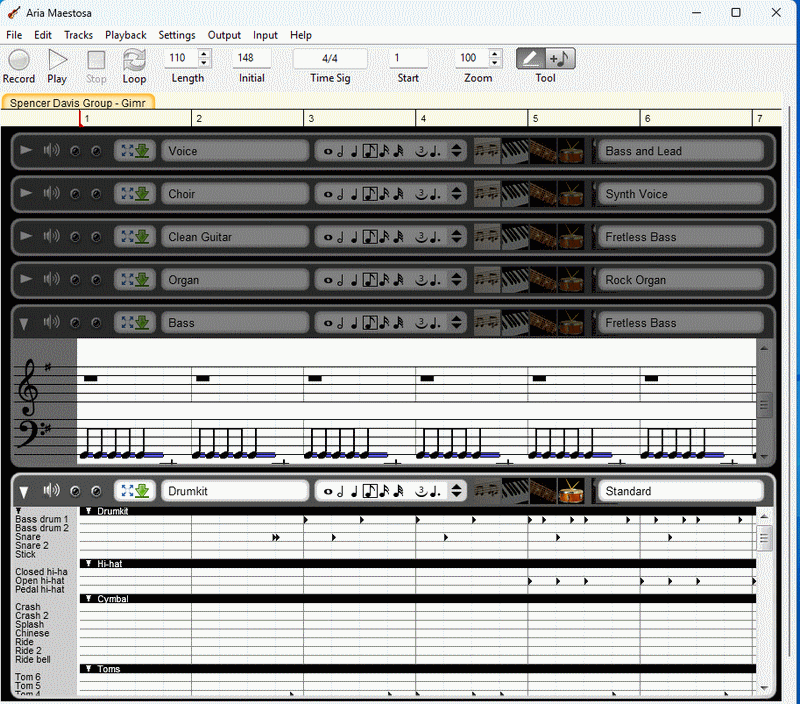
- Aria Maestosa: a modern and comprehensive User Interface, composition by piano-roll, partitura and ‘drum-track composer’. Saved midi files are not compatible to VR-USB and must be loaded/reexported e.g. by MidiEditor before running on VR USB
- Midi Editor 2.0: the ‘alltime classic’, but oldschool GUI
Tracks
A midi songfile is composed of ‘tracks’, a sequence of notes and chords. A track can be an instrument (e.g. guitar) or a drum-track.
Each track is bound to one midi Channel, as a consequence the maximal number of tracks is 16. The ‘drum’ track has to be associated to Channel 10 (by midi standard)
Creating VR backing tracks from downloaded song files:
Load the track into an editor and ‘mute’ the tracks you don’t want to be played on VR, e.g. the ‘vocal track’ (which is not a human voice but a GM instrument, mostly sounding ‘awful’ :)), or the instruments you want to play yourself on VR. E.g. you can mute all tracks but the drum-track/bass-line/rhythm guitar and play a string pad or a ‘solo’ on VR.
Selecting Instruments (for the tracks):
Downloaded song files use the “default GM2 instrument set” where each sound is selected by a ‘program change’ messages (no banks) which limites the set to 128 instruments.
VR has this ‘default set’ – but it sounds a bit ‘1990th’ 😉 To use the full ‘sound potential’ of VR GM2 engine (with 2500 sounds) you can use (change) the instrument by using VR ‘msb-lsb-bank’ + program change messages in the midi file. Most DAW editors allow to add ‘bank’ ids. From standalone editors, only Sekaiju can add ‘banks’.
You find the complete list of VR GM-sounds with msb/lsb/program numbers in VR_GM2_soundlist.zip.. You can also use CTRLR EDITOR to parse the GM sounds on VR (tab ‘SOUND-GM2’ + ‘GM2 engine’, everntually use editor virtual key to test the sounds)
Selecting Drumkits (for the drum track):
As for sounds, downloaded songs (or midi-editors) use the ‘default GM2 drumkits’, 9 at a number (from standard to TR drumcomputer). VR ‘default drumkits’ are sounding good and are very usable.
Nevertheless VR has many other GM-drumkits which can be accessed by adding ‘bank’ msb/lsb to the instrument program change:
You find VR drumkits with msb/lsb/program numbers in VR_GM2_soundlist.zip. You can also use CTRLR EDITOR to parse the GM drumkits on VR (tab ‘SOUND-GM2’ + ‘GM2 engine’)
Using ‘modifiers’ (controllers) on tracks:
Modifiers are midi-message modifying the sound of each track (note), e.g. by volume, pan, chorus, filter, modulation etc.
Standard midi and SMF songfiles use ‘GM2 midi Controllers’ as modifiers. You can also add/adjust them in your midi-editor.
VR GM2-engine is fully compatible to Roland GM2 standard ‘Controllers’ (Control Changes) : an overview is given in VR Classic Midi)
Elegant workflow’ to create midi songs
– chose a standalone editor (or DAW), ideally a Sekaiju(if you like the interface)
– connect your PC to VR and set VR midi mode to Mode 1 (VR menu ‘MIDI’)
– in the midi editor ‘midi config’, set ‘midi out’ to VR (Port ‘Roland V-COMBO VR-09’)
Now start composing: for a track
– if you use a DAW or Sekaiju, select VR GM instruments with help of VR_GM2_soundlist.zip or CTRLR EDITOR as mentioned before.
– if you use MidiEditor, Midify, etc which have no possibilty to enter ‘banks’, select a ‘default GM2 sound’ in the editor default GM sounds.
each time you add a note, you should hear it ‘from VR’
On Aria, Midify, etc, once you have finished the ‘composition’ (using ‘default GM sound set’), save the midi file, load into Sekaiju, and change the sounds (and drumkit) with full VR GM sound palette.
Example 1: midi-file “Gimme some Loving’ with edits
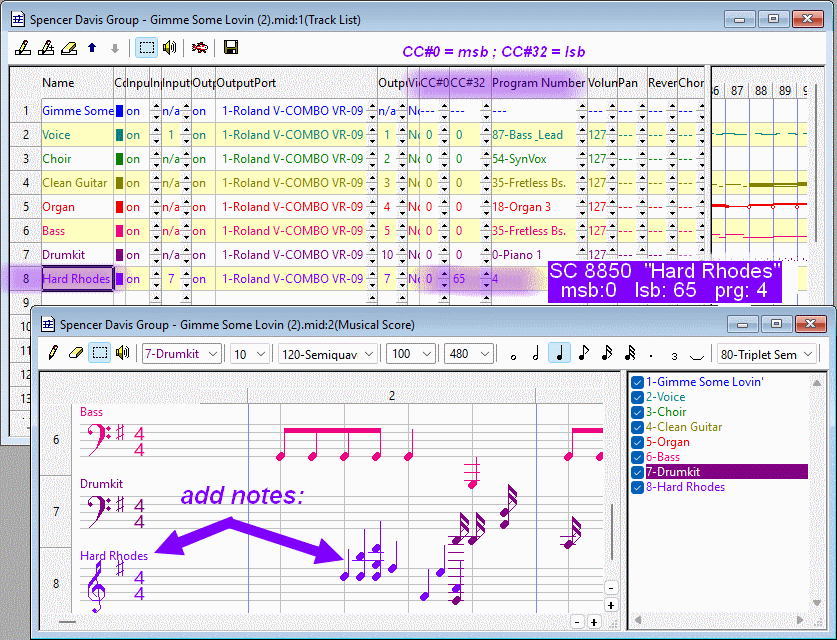
Midi-file “Gimme some Loving’ downloaded from a website and edited in Sekaiju:
– note: in Sekaiju, bank ‘msb/lsb’ are named CC#0 and CC#32 (in fact, msb/lsb midi messages are nothing else than ontrol changes 0 and 32)
– midi-out is set to VR so you hear ‘VR sounds’ when adding notes or playing the file
– Track 1 is a ‘naming track’ (for the ‘song name’)
– Track 2-7 are the original instrument tracks of the file using ‘default GM2 sound set (msb/lsb to 0)
– Track 8 is added “Hard Rhodes” from VR GM2 “SoundCanvas 8850” with msb 0, lsb 65, program 4 and midi channel 7
Example 2: midi-file “Gimme some Loving’ drum composer of Aria Maestosa
The picture shows Aria Maestosa with a ‘base line’ track and the ‘drum composer’ which is a very helpful tool: instead of ‘working on abstract notes’ for each drum instrument (like on other editors), Aria shows GM2 drum instruments by name which makes selecting a drum instrument much easier
For all ‘instruments’ Aria only allows selecting the (limited) ‘default GM2 soundkit”: to use other VR GM sounds, export the Aria composition as midi-file and edit it with Sekaiju to change sounds/drumkits